
New Client Workspace: every client's work on one timeline

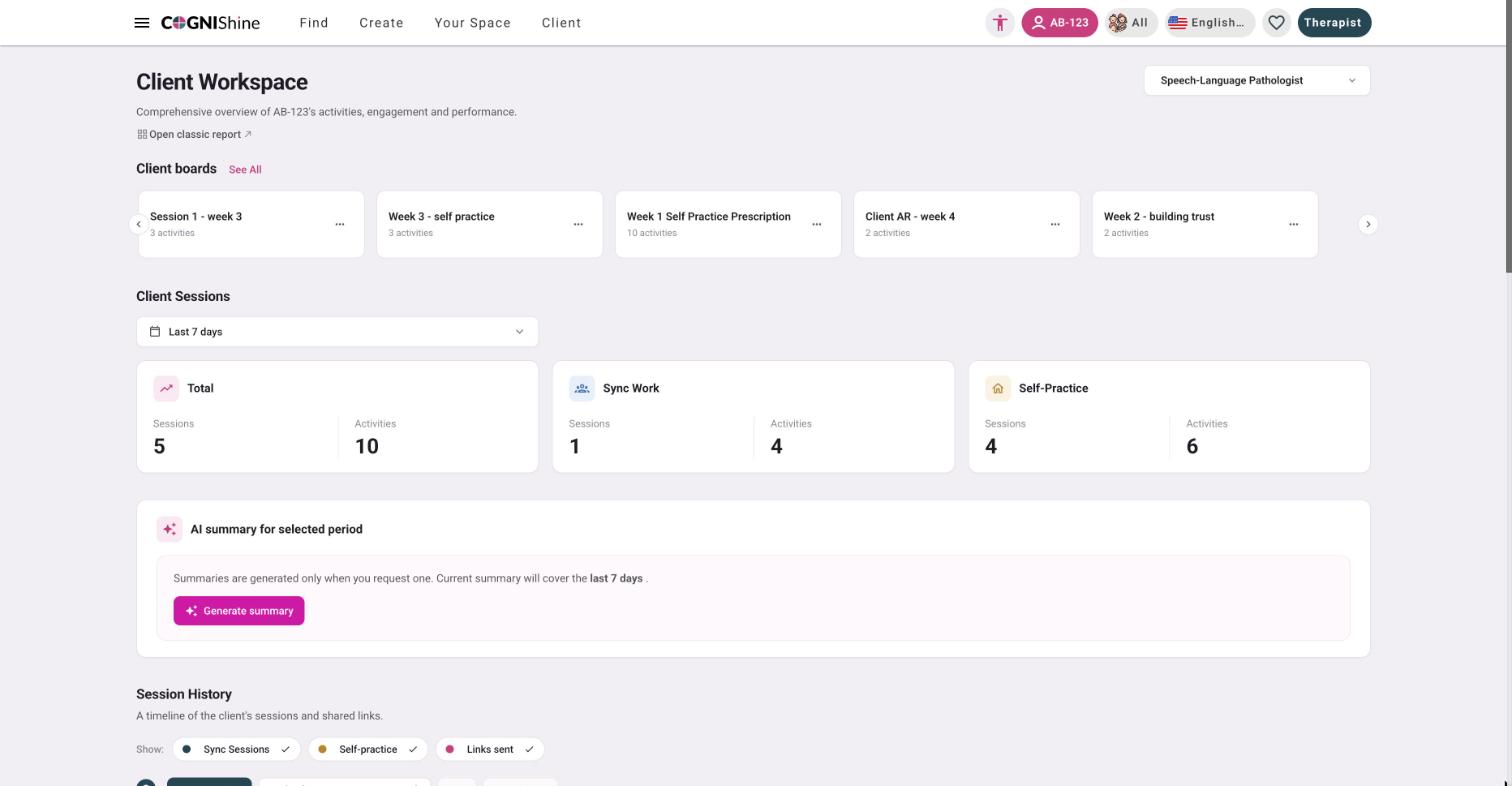
Everything about a client now sits on one timeline in the Client Workspace: the boards you use with them, the sync sessions you ran together, the self-practice they did at home and the links you sent. It's all on one screen, in date order, for the period you choose.
What's new
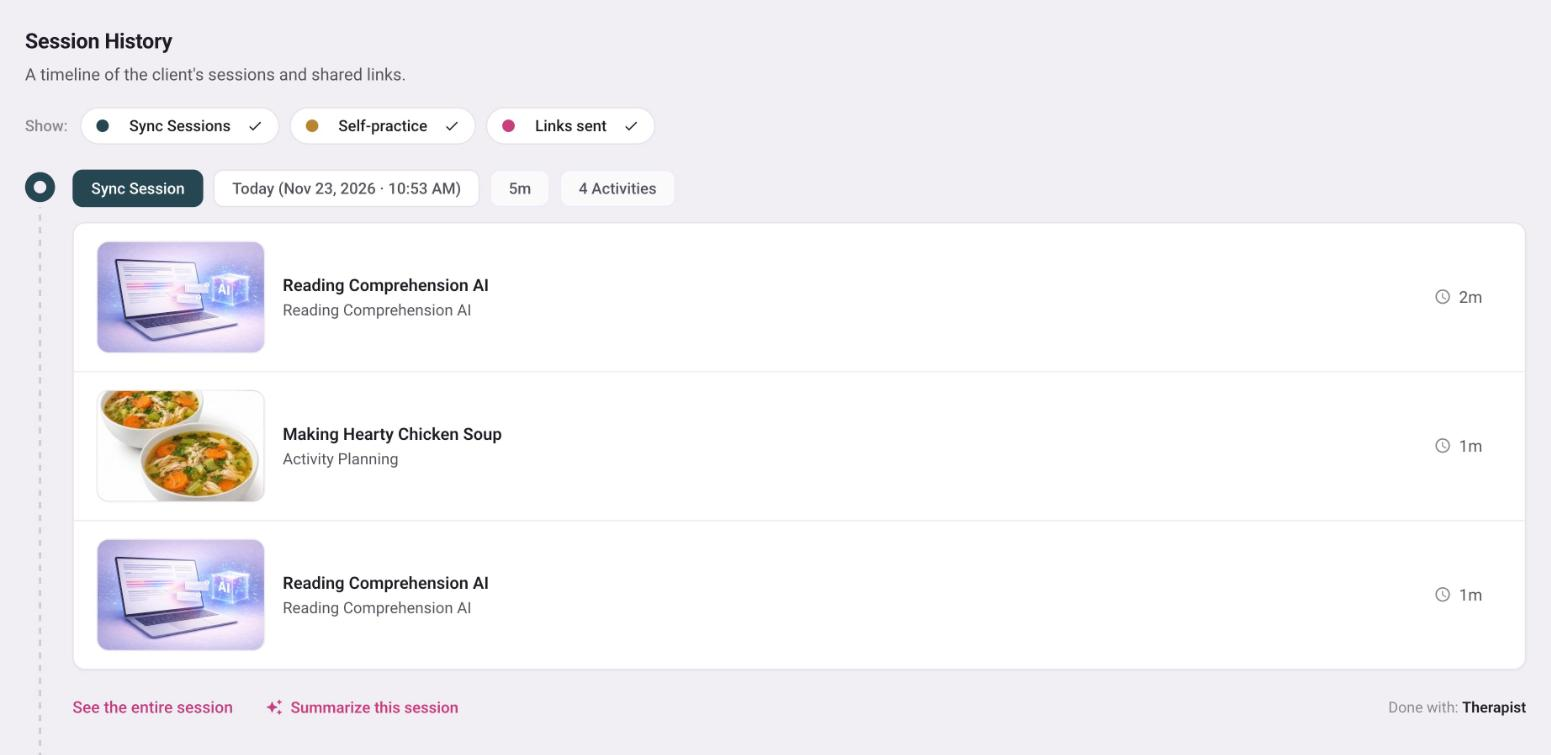
- Timeline view - sync sessions, self-practice and links sent appear as one chronological list, newest first, each with its date, duration and activities.
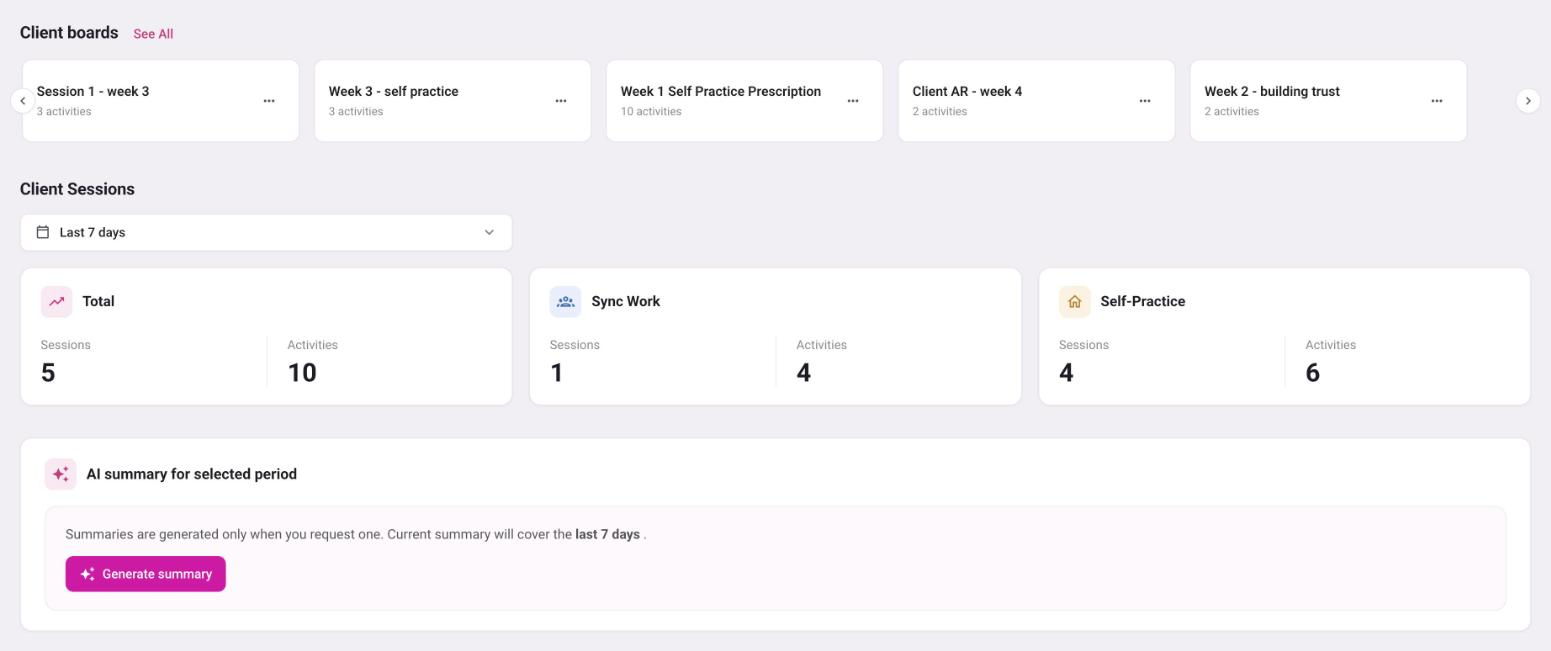
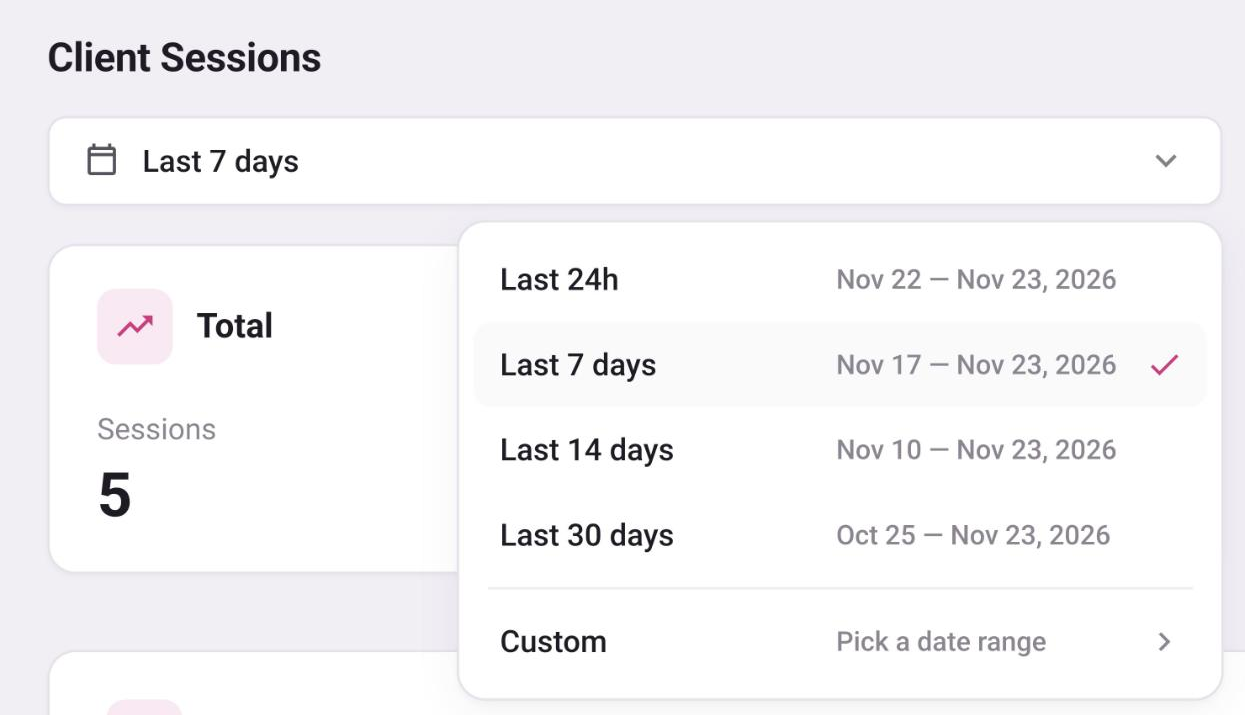
- Choose the period - show the last 24 hours, 7, 14 or 30 days, or pick a custom range of up to 30 days. Everything on the page follows the period you choose.
- The client's boards at a glance - a strip at the top shows every board linked to this client.
- Filters - narrow the timeline to sync sessions, self-practice or links sent.
- Session detail - open any sync session to see each activity you ran, the time spent on it and its report.
- Downloadable reports - most activities come with a session summary you can save as a PDF.
- Two views - switch between your own discipline and the multidisciplinary team view to see the whole picture.
How to use it
- Select the client using the pink client button at the top of the screen, then open the Client Workspace.
- Set the period you want to review.
- Scroll the timeline. Each group is one date and one session, either a sync session with you or the client's own self-practice.
- Use the filters to show only sync sessions, self-practice or links sent.
- Open a session to see its activities, time spent and reports, and save a summary as a PDF where available.
- Switch to the multidisciplinary team view to see work from colleagues in other disciplines.
Coming soon: AI summaries
You may notice an AI summary for selected period section and a Summarize this session link in the screenshots above. These are coming soon. You will be able to summarize a client's work over the selected period or within a single session, and ask questions about it in plain language. The AI describes what the data shows, such as fewer errors or a shorter completion time, and leaves clinical judgment to you.
Please note - Cognishine's AI features are enabled in your account only upon request. Please contact us to request access.